
Permissions
How Haruno uses permissions to access your apps and data.
Why permissions matter
Haruno can only work with the apps and files you give it access to. Permissions let you control exactly what Haruno can see and do. You grant each permission deliberately, and you can review or remove it at any time.
What Haruno can access
The level of access depends on the connector and what you approve. For example:
- Files and cloud storage — read and write the folders you select.
- CRM and ERP — read records and draft updates for you to approve.
- Email — draft messages; it cannot send anything without your approval.
- Productivity tools — create or update documents, spreadsheets, and pages in connected workspaces.
How to grant permissions
- Open Haruno and go to Settings > Connectors.
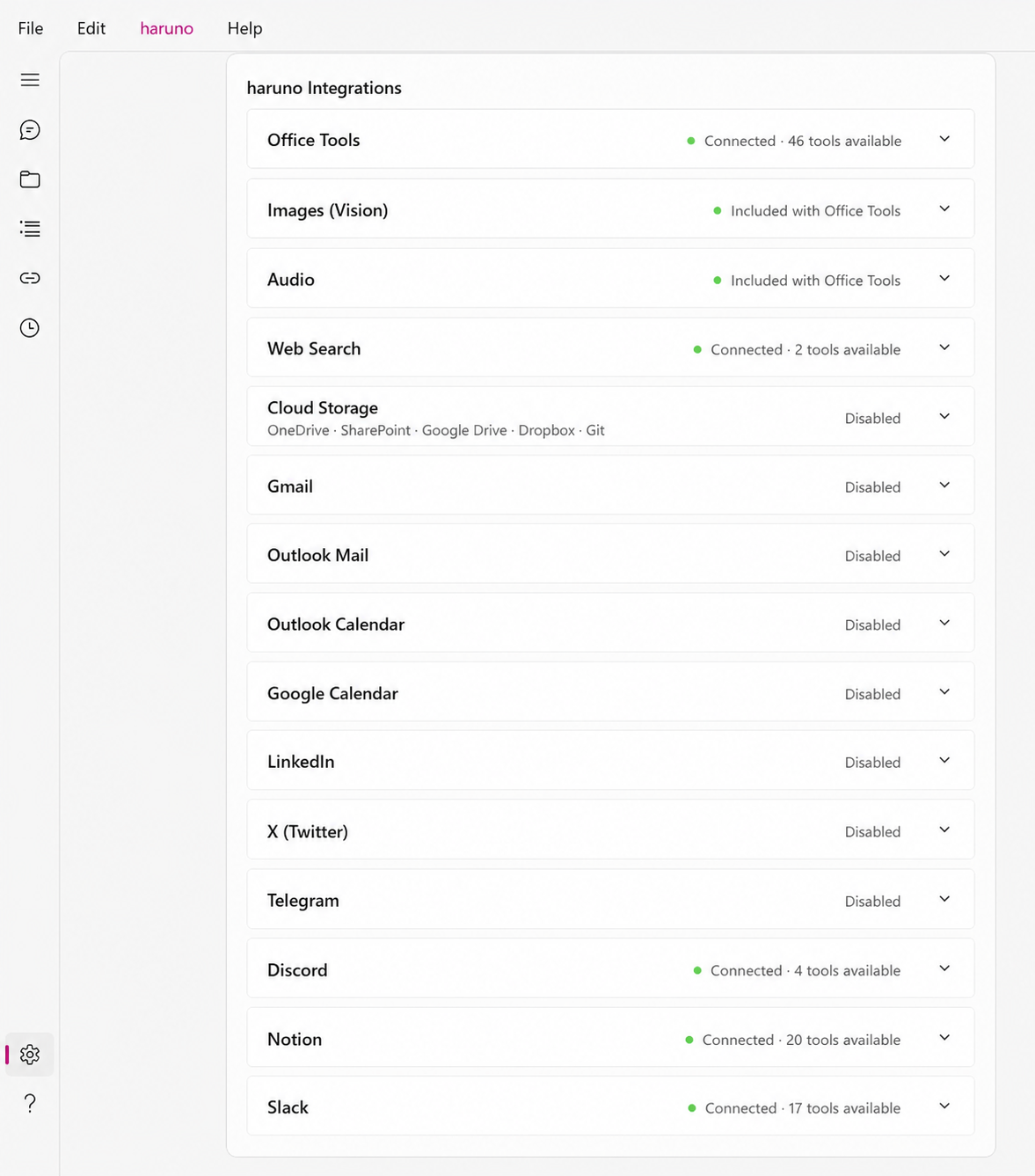
- Choose the app you want to connect.
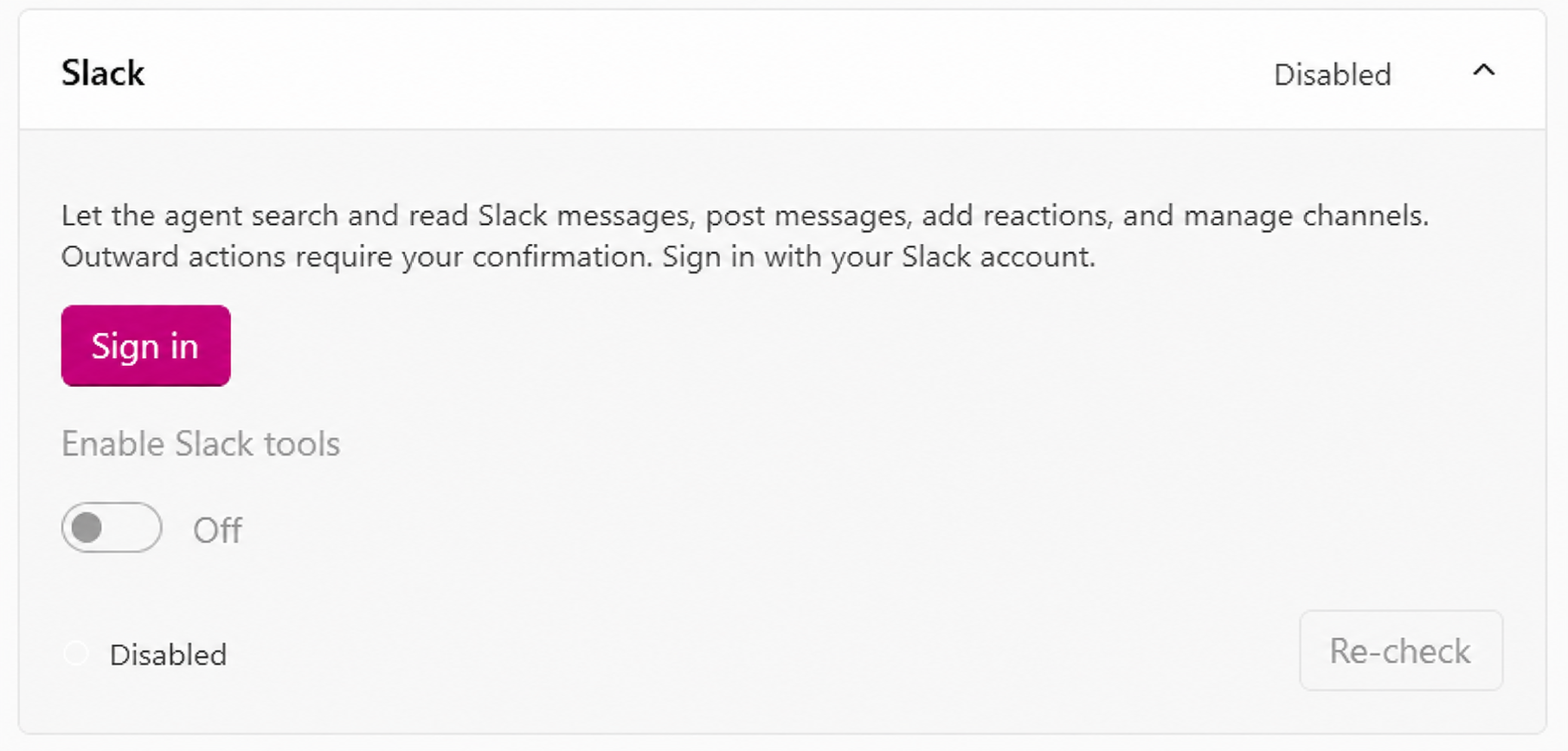
- Sign in with your existing account for that app.
- Review the permissions Haruno is requesting and confirm.
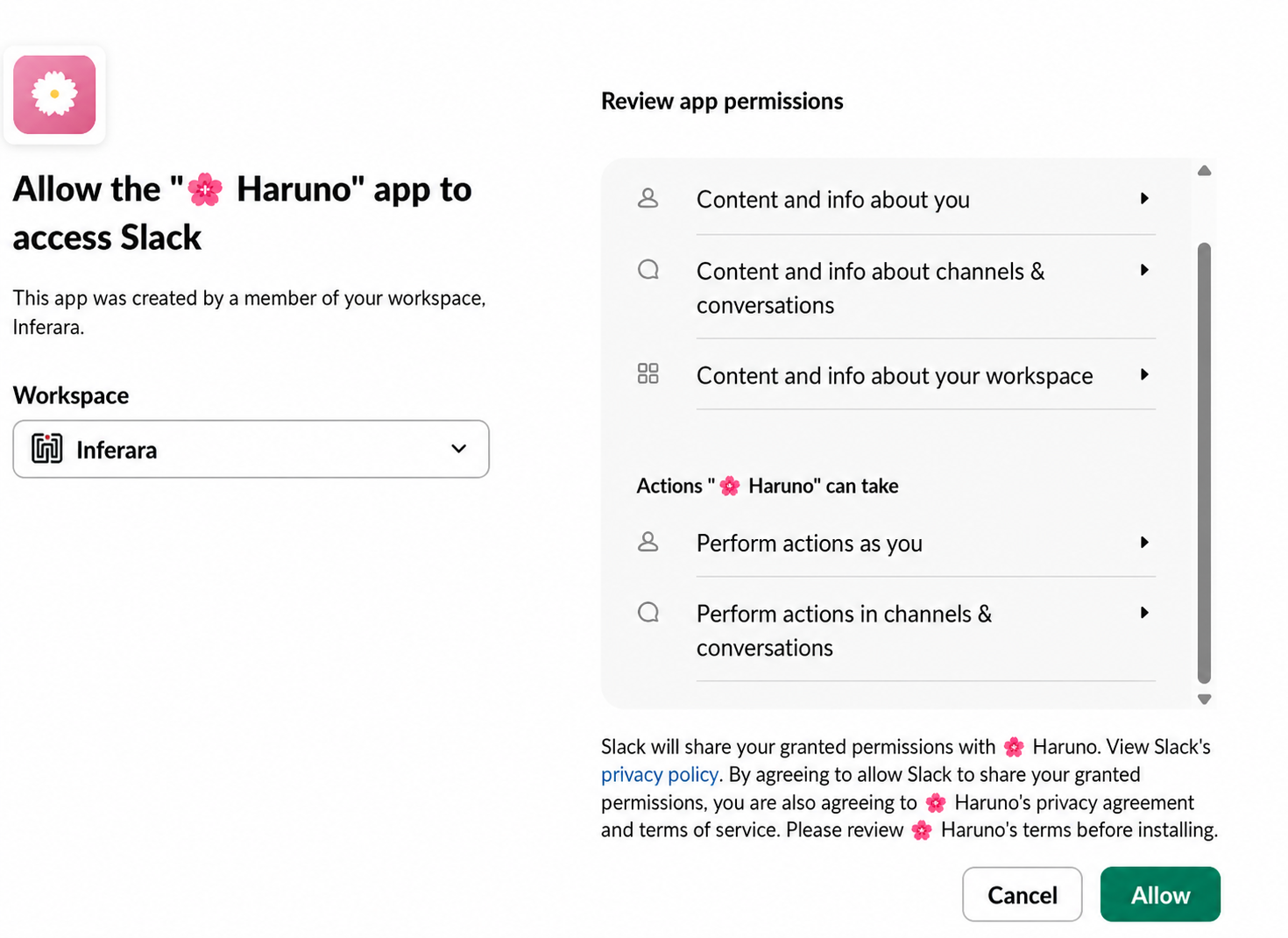
- Start using the connector in your tasks.
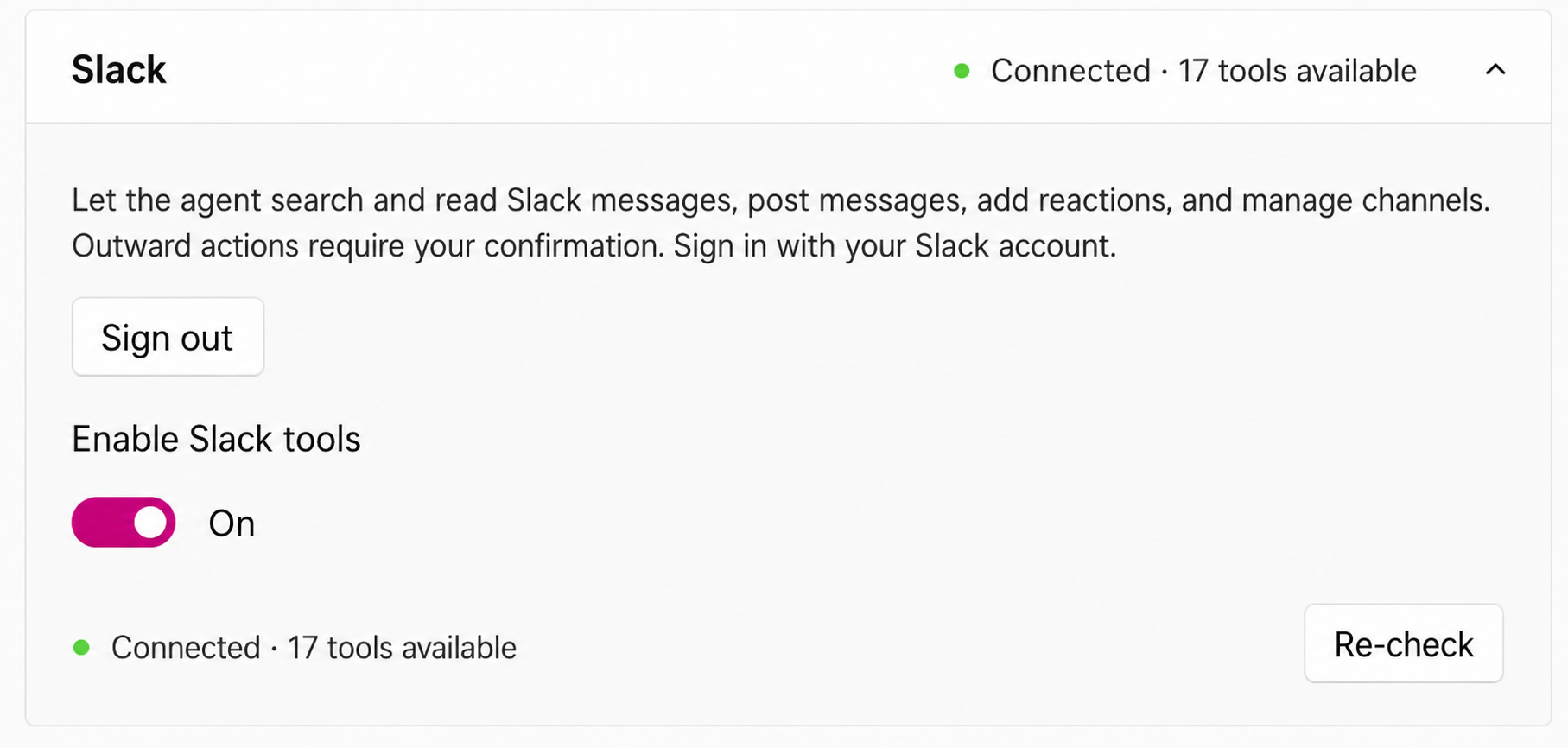
Revoking or changing permissions
You can disconnect a connector or change its permissions at any time from the Connectors settings. If you disconnect an app, Haruno will no longer be able to read from or write to it. Existing task history stays in your workspace unless you delete it.
Best practices
- Only connect apps Haruno actually needs for your tasks.
- Review connected apps regularly, especially after team changes.
- Use workspace-level or role-based access when available.
- Never share your Haruno account credentials with others.
Tip
Grant only what a task needs, and review connected apps from time to time. You can change or revoke any permission at any point.